Inbound orders are created directly by clients through their client dashboard.
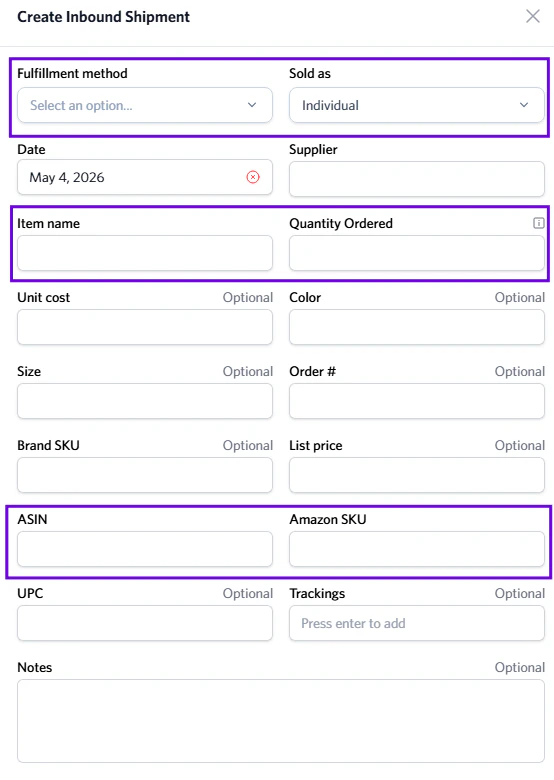
Clients can log in and submit an inbound order whenever they are sending inventory. Each inbound order typically includes:
- Item name
- Fulfillment type (e.g., Amazon FBA, FBM, Storage)
- Quantities
- Product details (SKUs, quantities, ASINs, etc.)\
Once submitted, the inbound order appears instantly in our Inbound tab, ready for processing and confirmation.
Attach shipment tracking numbers for faster and easier check-in upon arrival.
Viewing and managing inbound orders
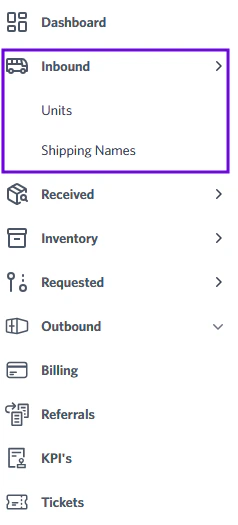
You can upload and view all inbound orders from your dashboard by selecting the Inbound tab in the sidebar.
This page gives you a complete overview of all pending and semi-received inbound orders.
Client visibility
Clients can track their inbound orders in real time through their dashboard. You’ll see updates automatically when our team changes the status or add notes.
This transparency helps reduce back-and-forth communication and builds trust between HexPrep and clients.
Best practices for inbound management
To keep your inbounded orders running smoothly:
- Clients must submit inbound orders before shipping inventory.
- Correct ASIN/SKU & WFS ID/SKU for each inbound.
- Specify whether the product is a Multi-Pack or Bundle.
- Add tracking numbers.
Clients who include tracking numbers allow HexPrep to automatically match incoming packages during receiving, speeding up the check-in process.